


VivaVideo - Video Cut & Editor
4.3144.24K Reviews
App Specs
- Version
- 9.37.4
- Updated On
- License
- Free
- Downloads
- 500,000,000+
- Developer
- QuVideo Inc. Video Editor & Video Maker App
- Categories
- Video Players & Editors
- Platform
- Android, iOS
Screenshots
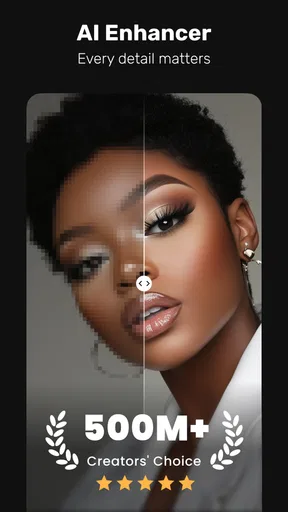
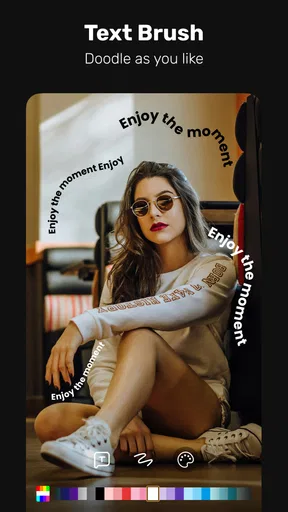
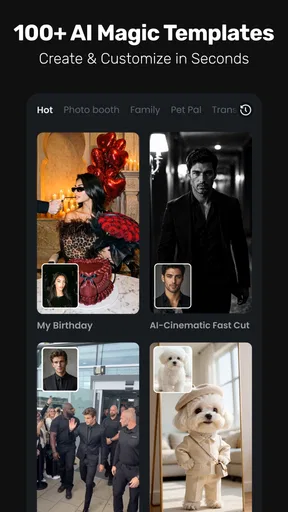
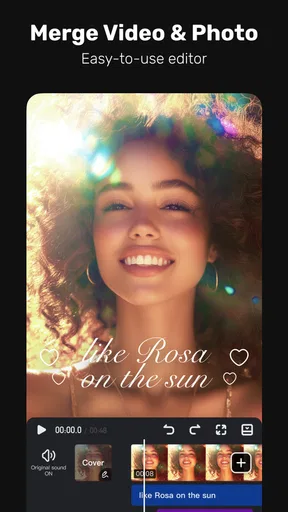
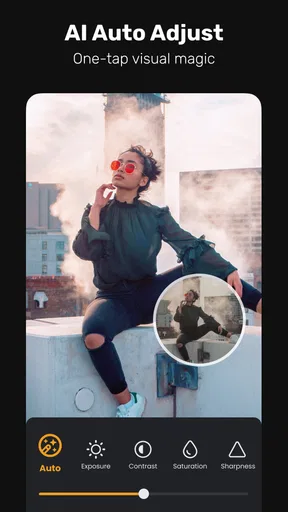
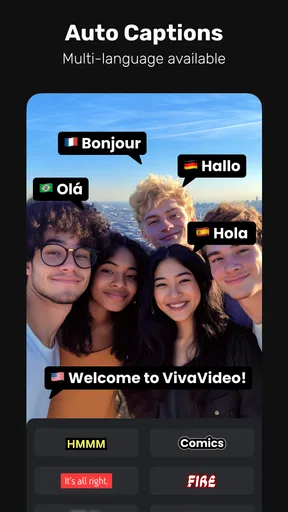
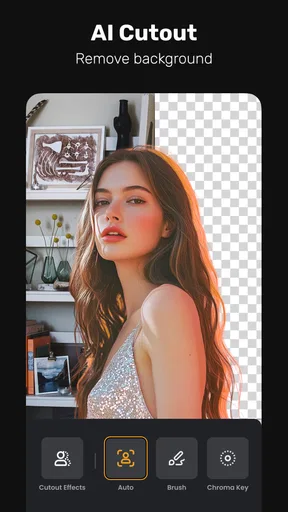
 Analysis by AppCompare
I reach for a mobile video editor when I have footage to turn into something shareable, but not the time or patience to learn a desktop editing suite. VivaVideo - Video Cut & Editor is aimed at that middle ground: it gives casual creators a quick route from a handful of clips to a finished post, while offering enough editing choices to make the result feel personal. In my experience, its main appeal is the way it puts several stages of a small video project in one place; the trade-off is that its busy creative options can tempt you into adding more than the footage needs.
A good fit for quick creative starts
VivaVideo is a video-editing app from QuVideo Inc. Video Editor & Video Maker App. Its tools suit everyday projects such as a short family montage, a product clip for a small shop, or a travel recap assembled on the ride home. Templates can help when I want a strong starting point rather than a blank timeline, while a regular project gives me more room to choose the pacing and arrangement myself.
The app is free to install and is rated for Everyone. It has an average rating of 4.3 from around 12 million ratings, with about 145,000 written reviews and over 500 million installs. Those figures suggest it has reached a broad audience, but they don’t tell me whether a particular editing style will suit you; the practical question is whether you want a flexible mobile toolkit or a more restrained editor focused on a few core controls.
Guides and Analysis on VivaVideo - Video Cut & Editor
Its current version is 9.32.3, and it runs on Android 7.0 or later. The app’s store summary points to AI-assisted templates, text-to-video creation, audio extraction, and automatic captions, alongside its wider editing purpose. These options make it worth considering when a project starts with mixed materials: a few phone clips, a line of text, and sound that needs to be repurposed rather than recorded from scratch.
From raw clips to a coherent edit
The most useful way to approach a short project is to decide what it needs to communicate before opening the effects library. I would pick the strongest moments first, arrange them in a simple beginning-middle-ending sequence, and only then add titles, music, or transitions. That order keeps a template or visual effect from taking over the story, and it makes the final edit easier to revise if a clip feels too long.
For a routine example, imagine making a quick video of a weekend meal: a brief shot of ingredients, a few moments of cooking, and the finished plate. A tight cut can make that footage engaging without a complicated setup. Text can identify the dish or mark a step, while a soundtrack sets the pace. If the source clips contain useful sound, I would listen before laying music over everything; a little kitchen audio can make the result feel more immediate than a continuous song.
VivaVideo’s range is convenient, but the same range calls for restraint. A transition between every clip, several animated captions, and a strong filter can make a simple sequence feel crowded. I find it more effective to choose one visual treatment and use it consistently, then reserve a more noticeable effect for a moment that deserves emphasis. This is especially useful for social posts, where a clear first impression matters more than showing every editing trick at once.
Worth Reading Before You Choose

Baby Panda World Brings Quick Play to Modern Phones, but Its Game Library Feels Busy

ESPN’s Live Game View Makes Following Close Games Easier

QuizzLand Review: A Good Fit for Short Trivia Breaks, Not Every Player

Basketball Stars: Multiplayer Is Fast, but Can It Recover When Matches Go Wrong?

WEBTOON Turns Phone Updates Into a Better Reading Routine

Link to Windows Runs on Shared Habits, Not Social Feeds
Text, captions, and audio choices
Captions and text can make a video easier to follow when someone watches without sound, and they can clarify a recipe step, a location, or a quick announcement. Automatic captioning can save time on a first pass, but I would still review the wording and timing before exporting. Names, background noise, and fast speech are all reasons to check captions rather than assume an automated result is ready to publish.
Audio extraction and voiceover tools can also help solve different problems. If a clip has a sound worth reusing, extracting its audio offers another way to build around it. If the video needs explanation, recording narration can be more direct than adding a screen full of text. I’d keep the voice track clear, listen for clashes with music, and use a short test playback before committing to the whole edit.
Templates versus hands-on control
Templates are most valuable when the job is simple and the deadline is close: a quick recap, a celebratory montage, or a short announcement that benefits from a ready-made visual rhythm. They can make it easier to begin when I have no plan for arranging the material. For a project with precise timing, a particular brand style, or several rounds of feedback, I would rather build the edit myself and treat templates as inspiration than let one dictate every choice.
That distinction also helps when choosing between VivaVideo and other editors. A lightweight editor with only trimming, basic text, and a soundtrack may be quicker if all I need is to remove the beginning and end of one clip. A desktop editor is usually a better fit for long timelines, detailed audio work, or close control over many layers. VivaVideo’s strength is the in-between task: shaping a polished short video on a phone without turning the process into a large production.
Preparing a clean handoff
Before sharing, I’d watch the export from start to finish and check that the opening makes sense, the captions remain readable, and the music doesn’t drown out speech. I’d also confirm that the final cut has no unwanted pauses and that the ending doesn’t feel abrupt. These checks take little effort compared with discovering a mistake after posting, especially when a video is meant to explain something or represent a small business.
VivaVideo supports exporting in different resolutions, including HD, and offers direct sharing to social platforms. That can make the last step convenient, but I still prefer to keep a copy of the finished video before posting when I may need to reuse it elsewhere. Exporting and sharing are separate decisions: a version made for one social feed may not be the best crop or pacing for another, so it is worth checking the intended destination before treating the first export as final.
Costs, limits, and who should look elsewhere
The free app includes in-app purchases, with individual items priced from $0.99 to $99.99. I would start with a small test project before paying for anything: that shows whether the available tools meet your needs and whether any restriction interrupts your actual workflow. Paid options may make sense for someone who edits often and values additional creative tools, but they are harder to justify if you only trim a clip now and then.
VivaVideo is not my first choice for a long documentary, detailed multitrack sound mix, or a project that needs a tightly controlled professional workflow. A phone screen and a template-led approach are naturally less comfortable for that kind of work than a desktop editor. It can also be easy to spend time browsing effects instead of improving the cut. If you want a minimal interface and predictable, basic edits, a simpler app may feel calmer; if you need extensive precision, use a desktop tool and keep the phone for rough cuts or quick social versions.
Getting Started with VivaVideo
First things first, downloading the app was a breeze. Whether you're on Android or iOS, you'll find it in your app store ready to become your new best friend. Once installed, the interface greets you with a clean and intuitive design. You don't need to be a tech whiz to navigate through this app, which is always a plus in my book.
Interface and Usability
The layout is pretty user-friendly. On the home screen, you’ll see options for creating a new project or diving into their extensive library of templates. I loved how everything is just a tap away. The app’s smooth performance makes video editing less of a chore and more of an exciting creative process.
One thing I have to mention is the drag-and-drop feature. It makes ordering and rearranging clips feel like child’s play. Plus, the timeline view shows all your clips and edits in one easy-to-read format. It’s like having a mini editing studio in your pocket.
Features that Stand Out
Now, let’s talk features. VivaVideo doesn’t skimp on the goodies. From basic trimming and splitting to more advanced features like speed adjustment and voice overs, it’s got you covered. What caught my attention were the special effects and transitions. They have this extensive library that lets you add a bit of Hollywood flair to your videos.
If you’re into filters, you’re in luck. The app offers a plethora of them, letting you change the vibe of your video with just a tap. The text and sticker options are quite fun too. You can add animated texts and stickers that can make your videos pop.
Music and Sound Effects
No video is complete without the right soundtrack, right? VivaVideo gives you access to a large collection of royalty-free music to set the mood. You can also add sound effects or even record your own voiceover directly in the app. It’s these little touches that make your video uniquely yours.
Sharing and Export Options
Once you're done crafting your masterpiece, sharing it is super straightforward. The app lets you export videos in various resolutions, including HD. Whether you’re posting on Instagram, TikTok, or saving it for personal use, VivaVideo ensures your content looks crisp and professional.
Plus, the direct sharing feature to social media platforms saves you that extra step of downloading and uploading. It’s all about convenience, and VivaVideo nails it.
Subscription and In-App Purchases
While the free version of VivaVideo offers a lot, there are some premium features that require a subscription. If you’re serious about video editing, the upgrade might be worth it. You get access to exclusive effects, unlimited exports, and no watermark, which is a big deal if you're looking to maintain a professional look.
Final Thoughts
In a nutshell, VivaVideo - Video Cut & Editor is a fantastic tool for anyone looking to dip their toes into video editing or even for seasoned creators looking for a handy mobile solution. It’s packed with features, easy to use, and offers a lot of bang for your buck. Whether you’re making a quick story for social media or a longer video project, VivaVideo has what you need to make your content shine.
So, if you’ve been on the hunt for a video editing app that’s both powerful and user-friendly, give VivaVideo a shot. Trust me, you'll be editing like a pro in no time!
My creator verdict
For the right project, I’d happily use VivaVideo to take a collection of phone clips from rough idea to a finished, shareable post. Its best role is as a flexible everyday editor: templates help me get moving, while the timeline and creative tools let me shape the result instead of settling for a one-tap montage. I’d recommend it to casual creators, families, and small businesses that need short visual pieces without making editing a separate production.
I would skip it if I expected every advanced option to be free, wanted a bare-bones trimming tool, or needed desktop-level precision. I’d also avoid judging the app by a single template-heavy project; a restrained manual edit may be a better test of whether its workflow suits you. Start with a short clip, check the whole export, and decide whether the balance of convenience and control is right for the way you create.
Pros
- Intuitive interface for easy editing.
- Wide range of filters and effects.
- Supports multiple video formats.
- Fast export without quality loss.
- Regular updates with new features.
Cons
- Contains ads in free version.
- Some features require in-app purchases.
- Occasional crashes on older devices.
- Limited audio editing options.
- Watermark on free exports.
FAQs for VivaVideo - Video Cut & Editor
What are the key features of VivaVideo?
VivaVideo offers a wide range of features, including video editing tools like trimming, merging, and adding music. It also includes filters, transitions, and text overlays to enhance your videos. With a user-friendly interface, it's ideal for both beginners and experienced editors. The app supports exporting videos in high definition, making it a versatile choice for content creators.
Is VivaVideo free to use?
VivaVideo is available as a free app with basic features. However, there is a premium version that offers additional functionalities, such as removing watermarks, accessing a wider range of effects and filters, and exporting videos without time limits. The premium version is available through a subscription model with various pricing options.
Can VivaVideo be used offline?
Yes, VivaVideo can be used offline for most of its editing features. You can edit videos, apply effects, and save them to your device without an internet connection. However, some features, such as downloading new effects or accessing cloud storage, require an internet connection.
What formats does VivaVideo support for importing and exporting videos?
VivaVideo supports a variety of video formats for importing, including MP4, MOV, and AVI. For exporting, the app allows you to save videos in MP4 format, which is compatible with most devices and platforms. You can also choose the resolution and quality of the exported video to suit your needs.
Is VivaVideo safe to download and use?
VivaVideo is generally considered safe to download and use from official app stores like Google Play and the Apple App Store. However, as with any app, it's important to read user reviews and permissions before downloading. Ensure your device's security settings are up to date to prevent any potential security issues.


